Set up Cursor
Connect Cursor with one prompt, or add Charming as a remote MCP server.
Install in one click
Cursor opens with the server name and URL already filled in. Approve it and the Charming tools are ready. The paths below stay for anyone who would rather do it by hand, or who is on a Cursor old enough to lack the installer.
Choose a setup path
Paste one prompt. This is the fastest path. Cursor connects through Charming’s HTTP API and asks you to approve the connection. The path itself is documented at Build over the HTTP API.
Add the MCP server. Paste one URL into Cursor’s MCP settings to keep the Charming tools ready in Cursor.
Both paths build the same apps. You only need one.
Connect with one prompt
Paste this into Cursor:
Connect me to Charming and help me build my first app. Read
https://charm.ing/docs/clients.md first.
Use Charming's HTTP API. Ask before starting account pairing, wait for
me to approve it, then read https://charm.ing/docs/build-http.md and
ask me what I want to build.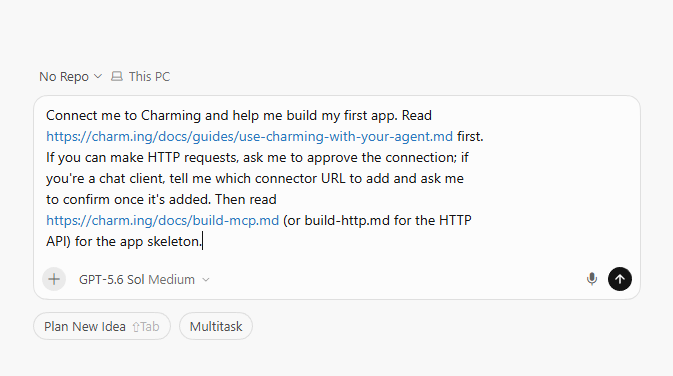
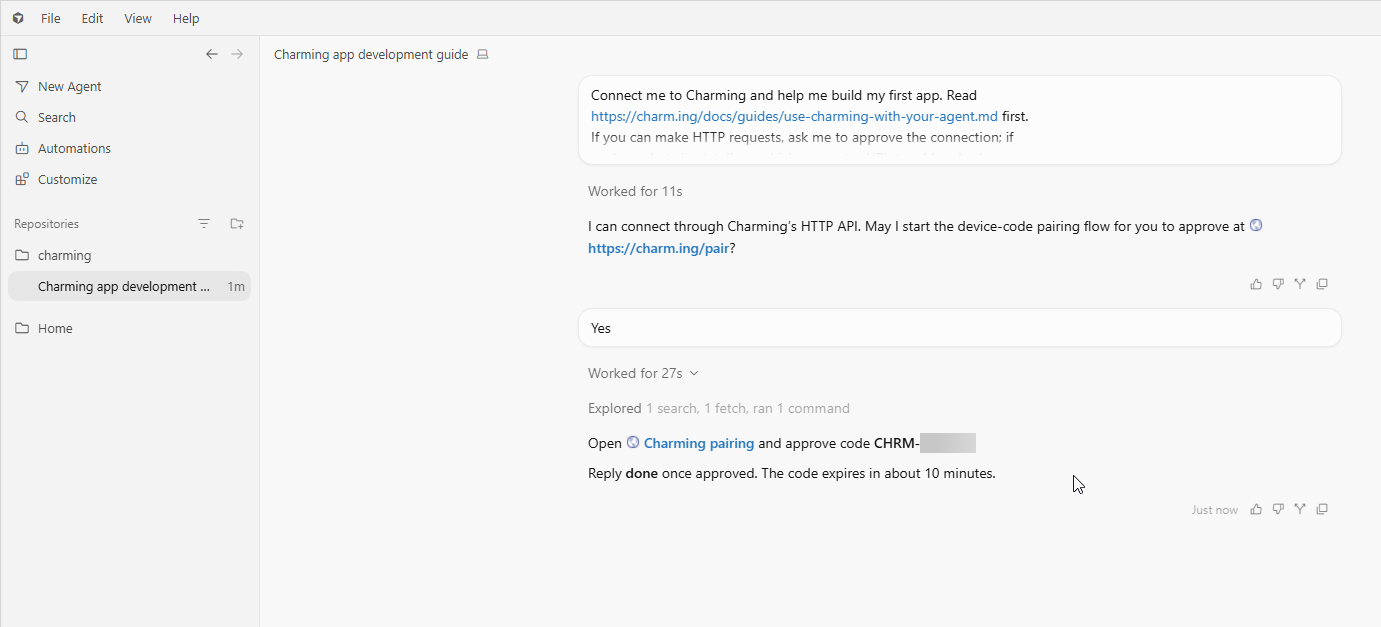
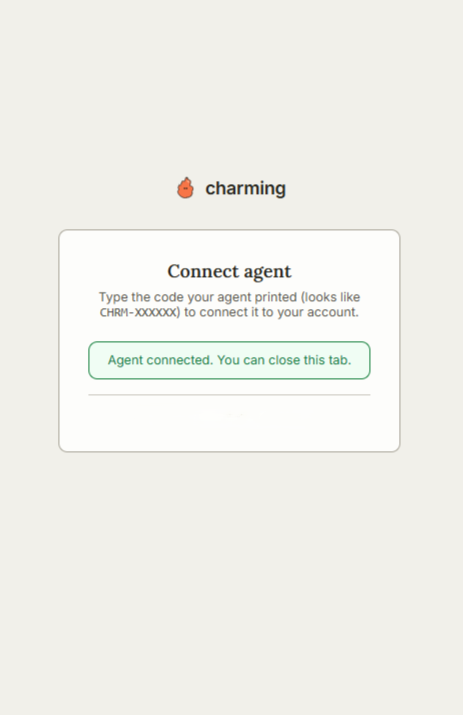
Cursor shows a pairing link and a short code. Open the link, enter the code if asked, and approve the connection.
Add the MCP server
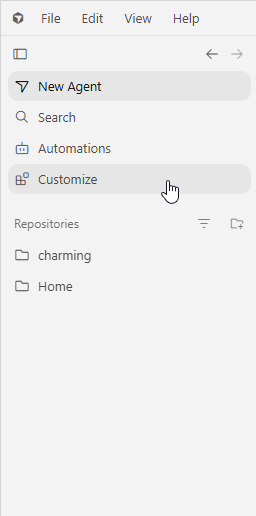
1. Open the MCP settings
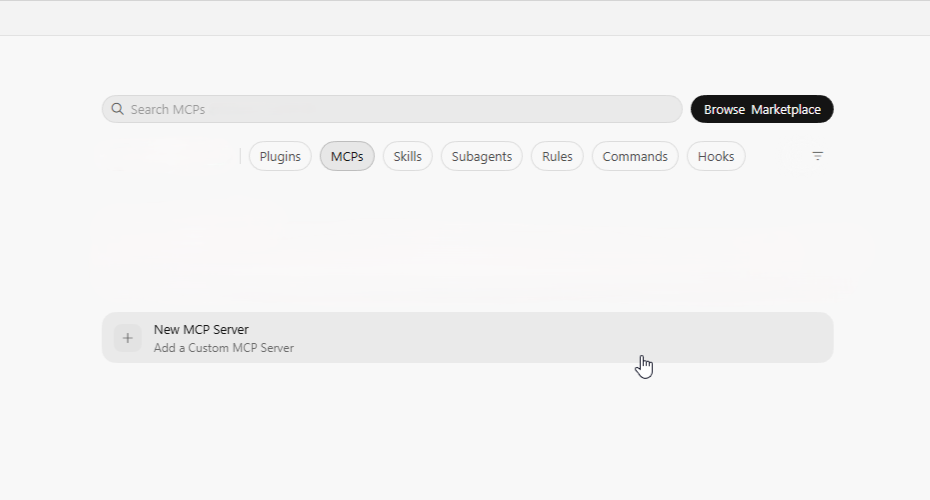
In Cursor, open Customize, choose MCPs, then click New MCP Server.
2. Paste the configuration
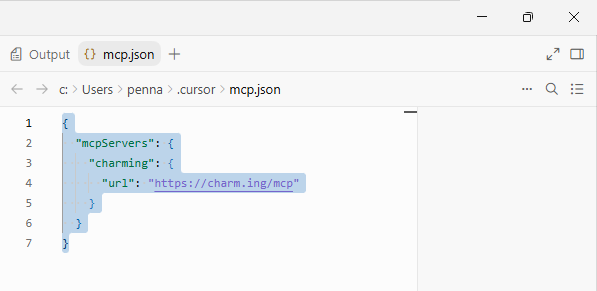
Cursor opens mcp.json. Paste this configuration:
{
  "mcpServers": {
    "charming": {
      "url": "https://charm.ing/mcp"
    }
  }
}
If the file already has other servers, add the "charming" entry inside the existing "mcpServers" object. Keep the rest of the file.
3. Sign in
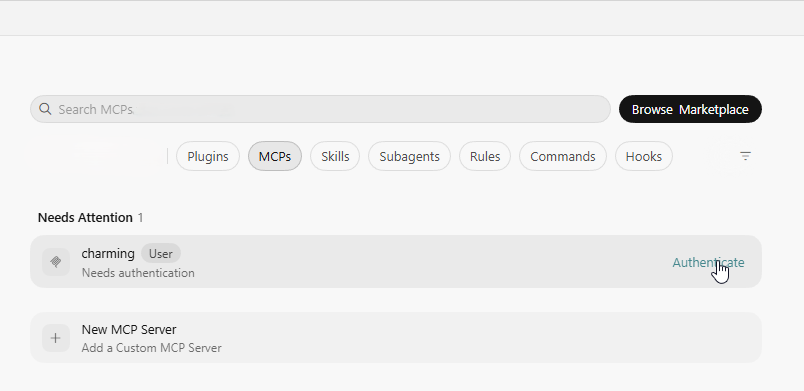
Save the file. Back in Customize → MCPs, click Authenticate beside Charming.
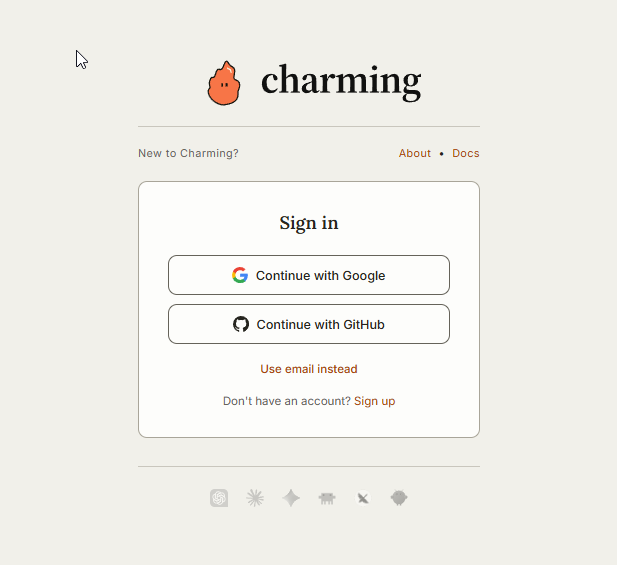
Sign in to Charming in the browser, approve the connection, and return to Cursor.
4. Check the connection
Charming should now show as connected. Ask Cursor to build an app; it will return a browser link.
Project and global configuration
Cursor reads global MCP servers from ~/.cursor/mcp.json. Use that file to make Charming available in every project.
For one project, put the same configuration in .cursor/mcp.json inside the project. The remote server uses browser sign-in, so the file needs no API key.
See Cursor’s MCP guide for project and global server configuration.
Troubleshooting
| What you see | What to try |
|---|---|
| Charming shows as disconnected | Toggle the server off and on, or restart Cursor. |
| The tools list is empty | Finish browser sign-in, then reconnect the server. |
| Connection refused or 404 | Use https://charm.ing/mcp, with no api. prefix and no trailing slash. |
| Cursor reports a JSON error | Remove a trailing comma and check that the file has one "mcpServers" key. |
| The app does not appear inside Cursor | Open the Charming URL returned by the tool. Cursor uses the browser fallback. |