Set up Claude
Add Charming to Claude as a custom MCP connector, screen by screen.
Claude has full native support for custom connectors, on Free, Pro, Max, Team, and Enterprise. Free is capped at one connector. The flow is the same on claude.ai and Claude Desktop.
Add the connector
-
Copy this URL. Claude needs it for the custom connector.
https://charm.ing/mcp -
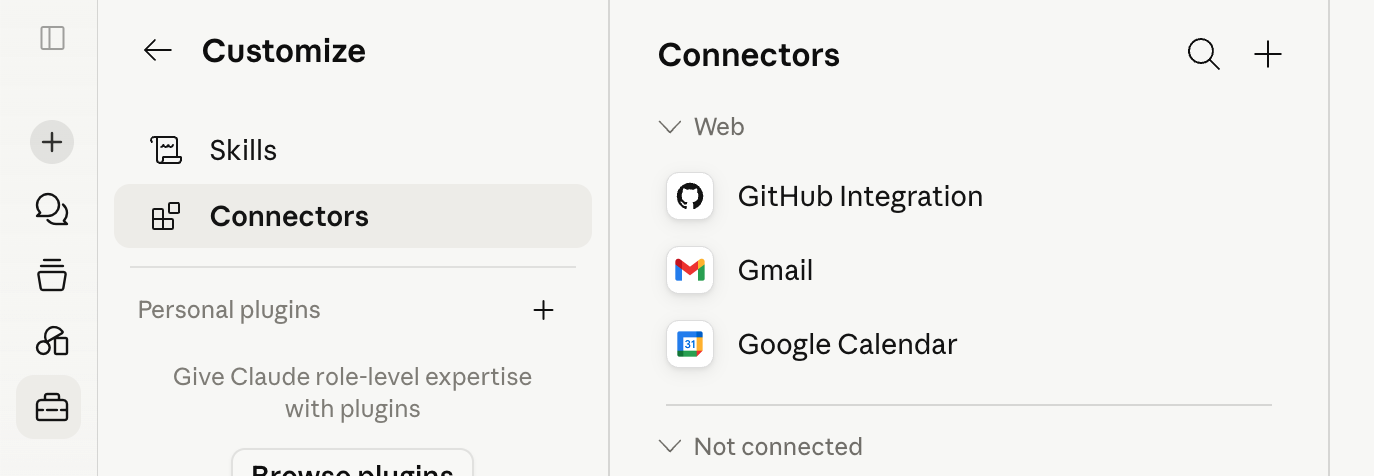
Open Claude’s connector settings.
-
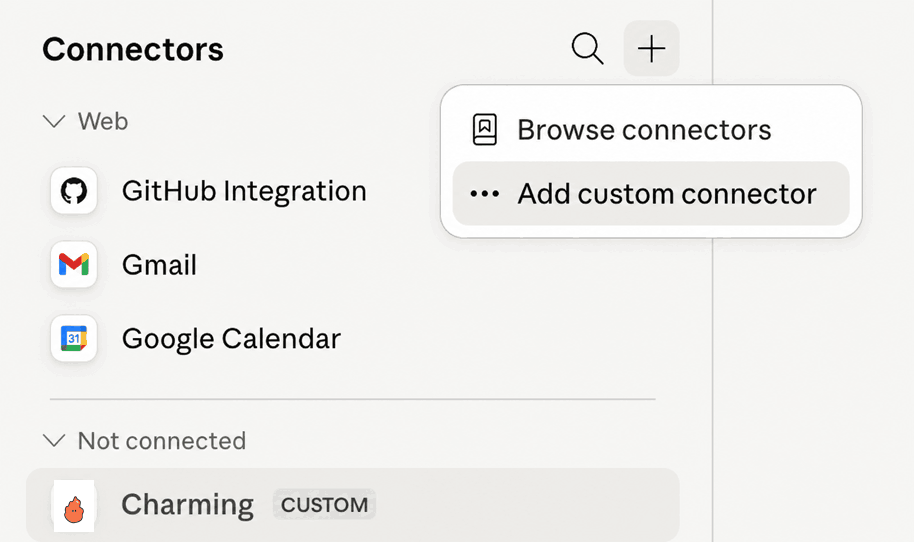
Click the plus button, then choose Add custom connector.
-
Name it Charming, paste
https://charm.ing/mcp, then click Add.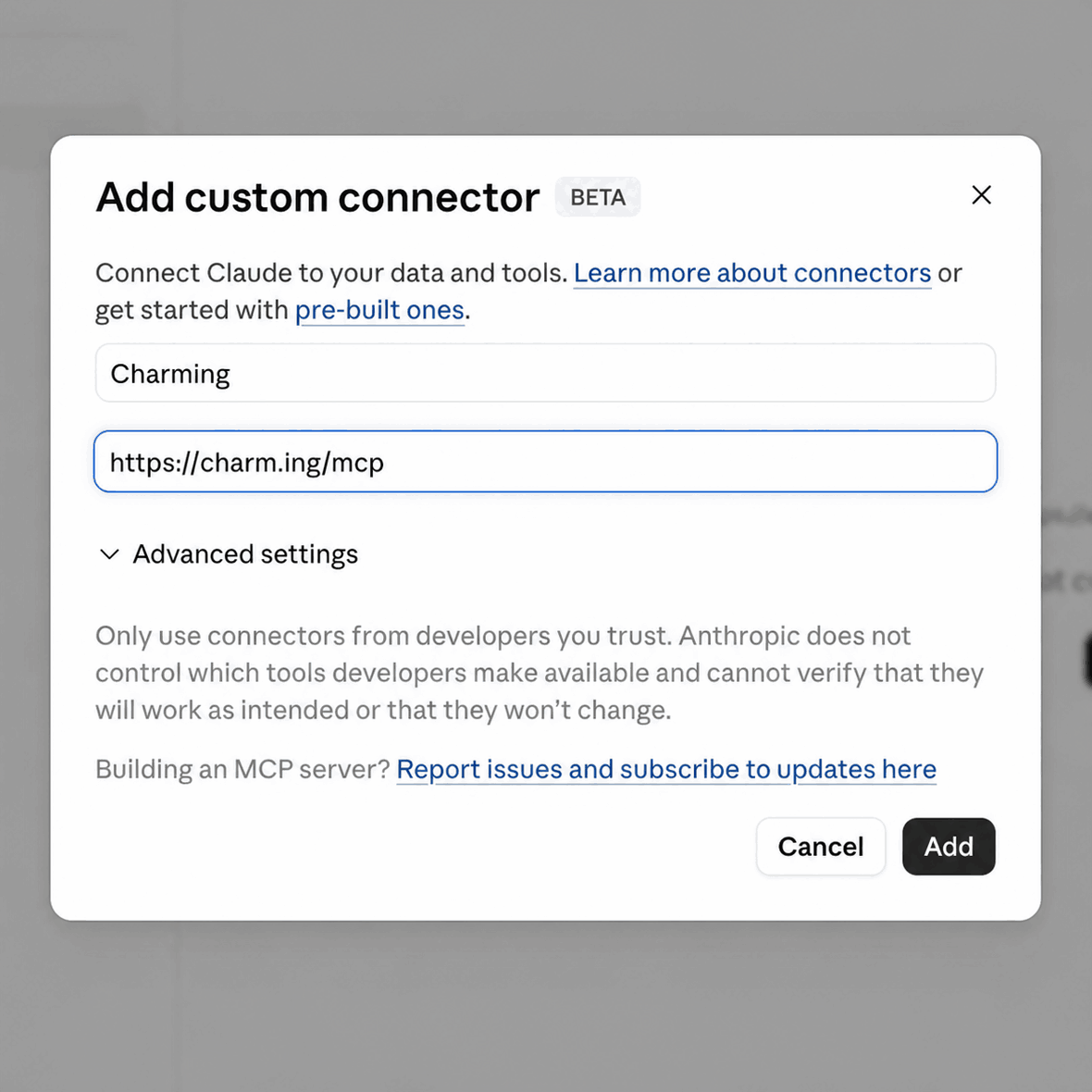
-
Approve the connection. This lets Claude call Charming’s tools.

-
Start building. The app renders inline in claude.ai, Claude Desktop, and the Claude Code desktop app. The Claude Code CLI calls the same tools but opens the app’s URL instead of drawing it inline.